Guide · Free 30-day tracker

No-spend challenge: rules, tracker and app30 days.
Zero impulse buys.

A no-spend month is the fastest way to see where your money really goes. Here are clear rules, a free tracker you can tick off right here, and an app to log the days you do spend.
GET IT ONGoogle Play
Scan with your phone cameraTap the code to enlarge

Scan to install

Point your Android phone's camera at the code. It opens Expense Manager on Google Play.

Or open Google Play on this device →
  • Simple rules
  • Interactive tracker
  • Weekend to month
  • Free app
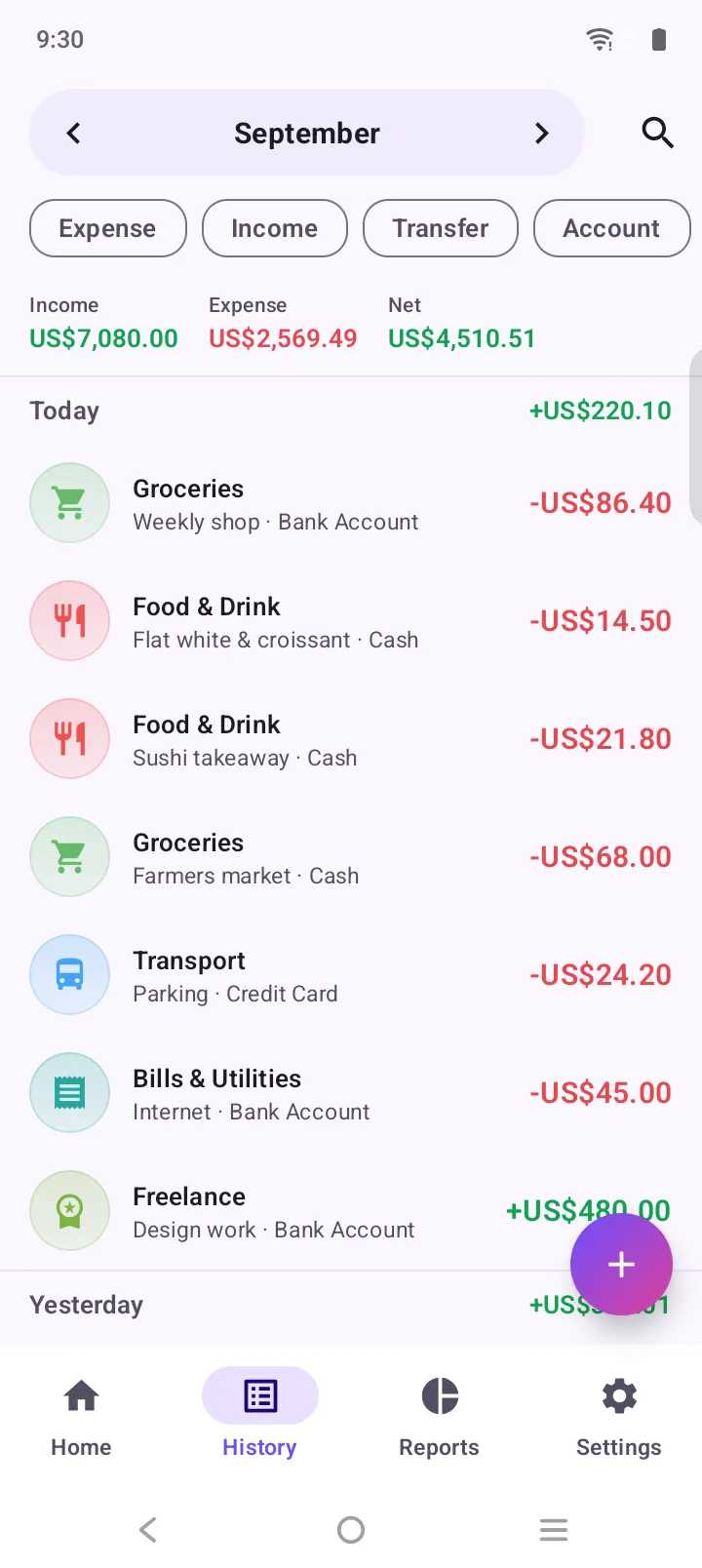
History screen grouping transactions by day with a daily total

Quick answer

A no-spend challenge is a set period, usually a week or a month, when you buy only essentials. Typical rules: rent, bills, groceries from a list, transport and medicine are allowed; takeaway, eating out, shopping, new subscriptions and impulse buys are not. Track each day you spend nothing extra, and move the money you saved to savings at the end.

Updated

  • 30days in a no-spend month
  • 6steps to set it up
  • 4challenge lengths to choose
  • 3taps to log a slip-up
No-spend challenge rules

What’s allowed, what isn’t.

A starting set of rules. Adjust them to your life, then write them down before day one.

Allowed
  • Rent or mortgage, utilities and phone
  • Groceries from a list
  • Fuel, transit and parking for work
  • Medicine and essential toiletries
  • Debt payments and savings transfers
  • Planned gifts already in your budget
Not allowed
  • Takeaway, delivery and eating out
  • Coffee shop drinks
  • Clothes, gadgets and home decor
  • New subscriptions and in-app purchases
  • “It was on sale” buys
  • Paid entertainment you can swap for free
Free no-spend tracker

Tick off your no-spend days.

Tap once for a no-spend day, twice for a day you spent. Your progress is saved in this browser only.

0no-spend days
0best streak
0spend days
No spendSpentNot yet
Track it in the app

A no-spend challenge app that keeps you honest.

Expense Manager is free, works offline and needs no account.

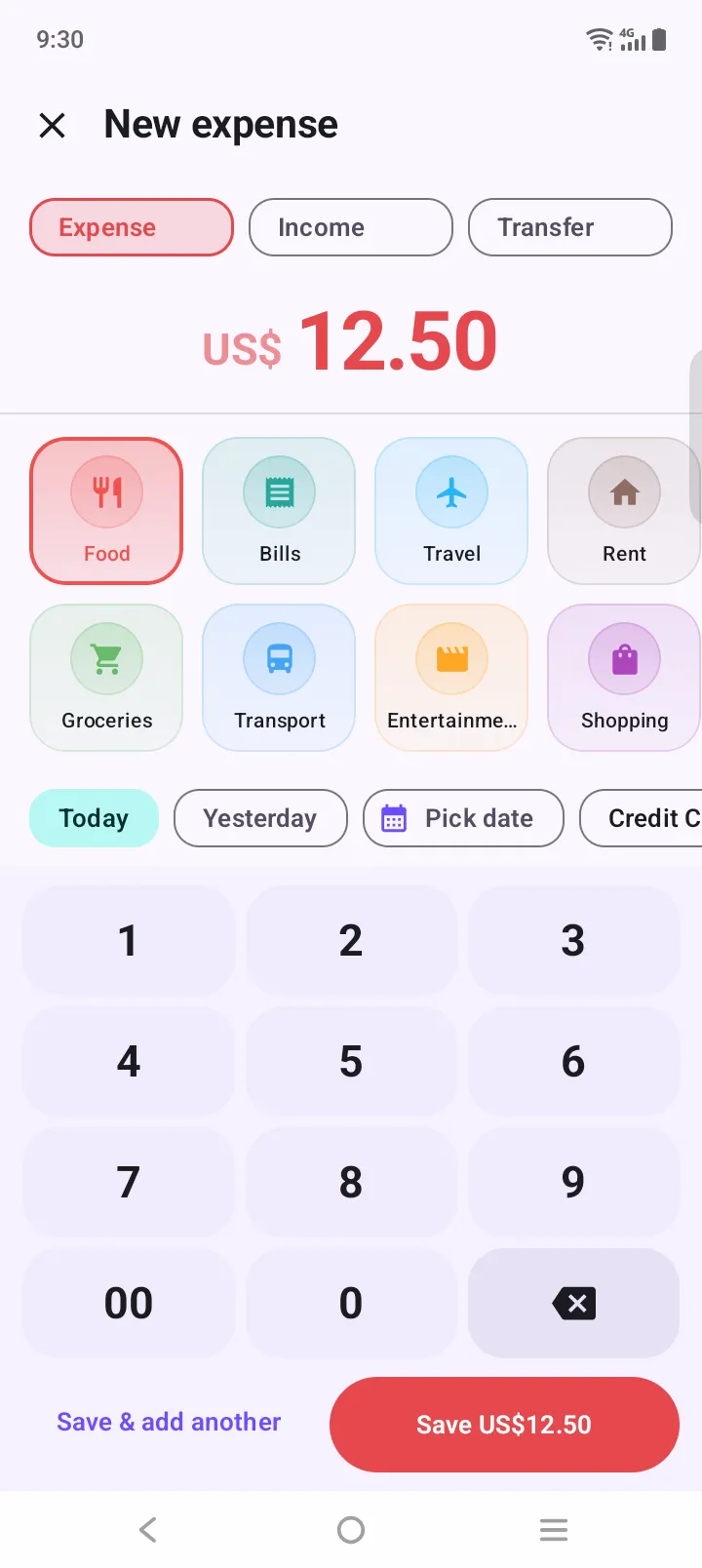
Add screen with category picker
01

Log essentials as you go

Rent, groceries and fuel still get logged in three taps, so you can see they stayed within the rules.

History screen grouped by day
02

Spot the zero days

History groups everything by day with a daily total. Days with nothing logged stand out.
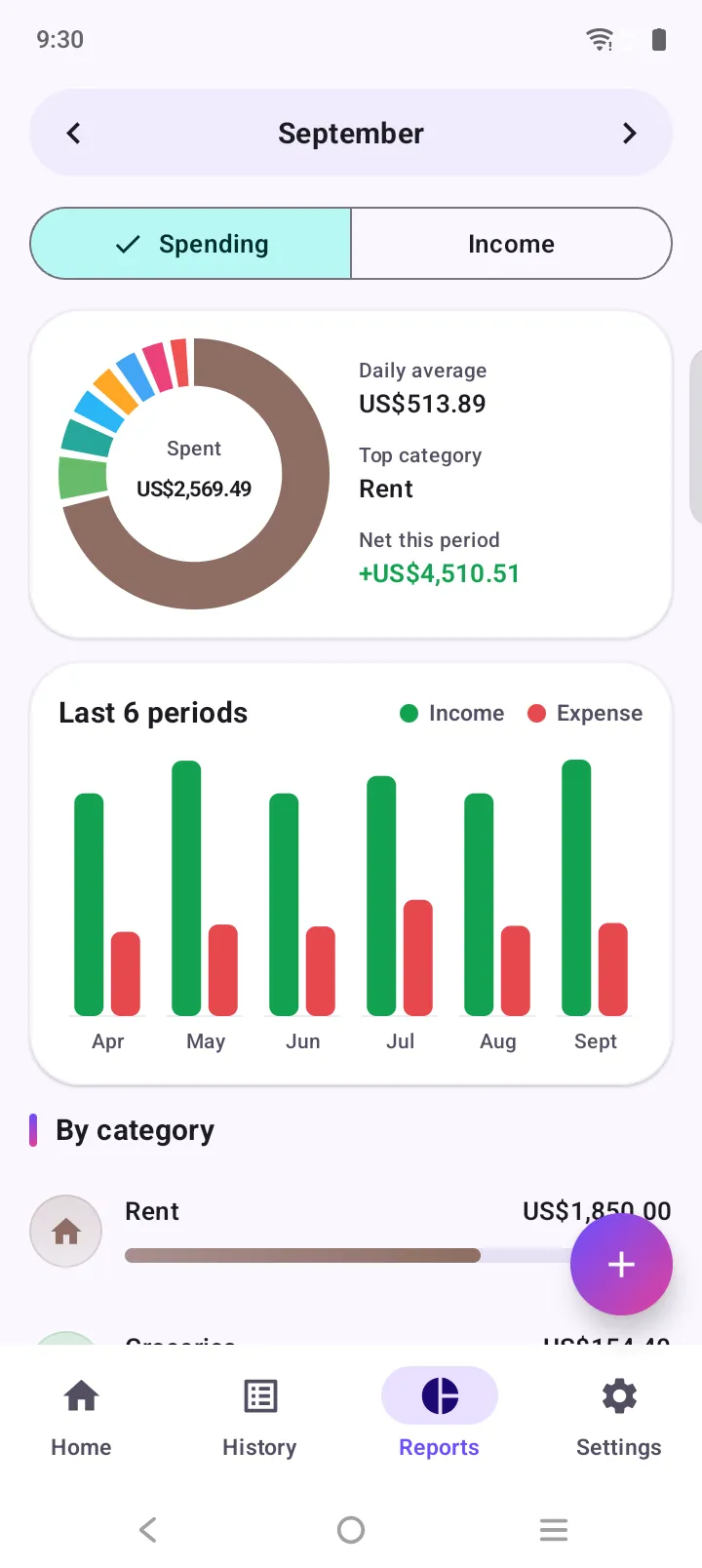
Reports screen with category chart and trend
03

Compare with last month

Reports show spending by category and a six-period trend, so you can see what the month saved.

How to do a no-spend month

Six steps to a month you’ll actually finish.

  1. Pick your length. Choose a weekend, a week or a full month. A first-timer does best with one week or a 30-day month.
  2. Write your rules. List what still counts as essential (rent, bills, groceries, fuel, medicine) and what is off-limits (takeaway, shopping, impulse buys).
  3. Prepare before day one. Stock the kitchen, cancel trials you don’t need, unsubscribe from shop emails and delete saved cards from shopping apps.
  4. Track every day. Mark each day you spend nothing outside your essentials. Log any spending you do, so you can see what tripped you up.
  5. Plan free fun. Line up free things to do: walks, library, game nights, cooking at home, free local events.
  6. Review and keep what worked. At the end, add up what you didn’t spend, move it to savings, and keep the one or two habits that were easy.

Survive the hard days

  • 💡Use a 48-hour rule: write the item down and decide in two days.
  • 🛒Shop groceries once a week, with a list, after eating.
  • 📵Delete saved cards from shopping apps for the month.
  • 🍝Cook a “pantry week” using what’s already in the cupboard.
  • 🎲Swap one paid plan a week for a free one.
Variations

Pick a challenge that fits your life.

No-spend weekend

Two days, nothing extra. The easiest way to test your rules before a longer run.

No-spend week

Seven days, one grocery shop. Great for resetting after a big month.

No-spend month

The classic 30 days. Long enough to break habits, short enough to finish.

Category challenge

Cut just one category, like takeaway or clothes, for a month. Easier to keep going.

Low-buy year

A longer version: a short list of planned purchases and nothing else.

Partner challenge

Do it with a friend or partner and compare zero-spend days each week.

FAQ

No-spend challenges, answered.

What is a no-spend challenge?

A no-spend challenge is a set period, often a week or a month, when you buy only essentials such as rent, bills, groceries and transport, and cut all non-essential spending like takeaway, shopping and entertainment.

What are the rules of a no-spend challenge?

You set them yourself. Most people allow fixed bills, groceries from a list, fuel or transit, and medicine, and ban eating out, takeaway, clothes, gadgets, subscriptions you can pause, and impulse purchases. Write the rules down before you start.

How do I do a no-spend month?

Decide your rules, prepare before day one by stocking the kitchen and removing saved cards, track each no-spend day, plan free activities, and at the end move the money you didn’t spend into savings.

Are groceries allowed in a no-spend challenge?

In most versions, yes. Groceries are an essential. Many people set a grocery list or a weekly grocery limit and try to use up what’s already in the cupboard first.

How do I track a no-spend challenge?

Use the free tracker on this page to tick off each no-spend day, or log every purchase in an expense app so the days with no spending stand out. In Expense Manager the history groups spending by day, so zero-spend days are easy to spot.

What if I slip up?

Log the purchase, note what triggered it, and carry on. A challenge with 24 no-spend days out of 30 still saves real money and teaches you more than giving up on day 7.

Start your money diary today.

Free on Google Play. No account, no sign-up. Your first expense is three taps away.

GET IT ONGoogle Play
Scan with your phoneTap the code to enlarge

Scan to install

Point your Android phone's camera at the code. It opens Expense Manager on Google Play.

Or open Google Play on this device →